Key Highlights
Here is a quick way to look at what you will get to know about Google Search Console:
- Search Console is a free tool from Google. You can use this to keep track of your website in search results.
- It will show you key numbers like clicks, search queries, and how many people see your site. This data can help you make a good SEO strategy.
- The URL Inspection Tool lets you check the indexing status of any web page.
- The platform helps you find and fix technical issues that can make your search performance worse.
- If you add a sitemap through Search Console, Google will be able to read your site better.
- You can join Search Console with other tools like Google Analytics. This way, you get a better look at all your site’s data.
Do you have a website or do you run one? If you do, it is important to check how it is doing. Google Search Console is a free service made for website owners. This tool lets you talk to Google. It gives you facts about how your website shows up in google search results. You can find out more about your audience on google search. You can also use what you learn to make your content better. This guide will help you learn how to use Google Search Console. You will see how it can help your site get seen more and get better at SEO.
Introduction
Understanding Google Search Console: The Basics
Before you use Google Search Console, you should know what it is and why you need it. It used to be called Google Webmaster Tools. Now, Google Search Console is an essential tool for your online presence. It helps you link your website with Google, which is the biggest of the search engines.
You can see it as a health checkup for your website that comes straight from where it’s made. In the next sections, you will find what this health checkup means, what good things you get from it, and how it is different from the SEO tools you may use now.
What Is Search Console? Meaning and Purpose
Google Search Console is a free service from Google. It lets you see how well your site is doing in google search. The tool helps you, as the owner, see how google search finds, lists, and shows your site in search results. This is very useful for bloggers and seo professionals.
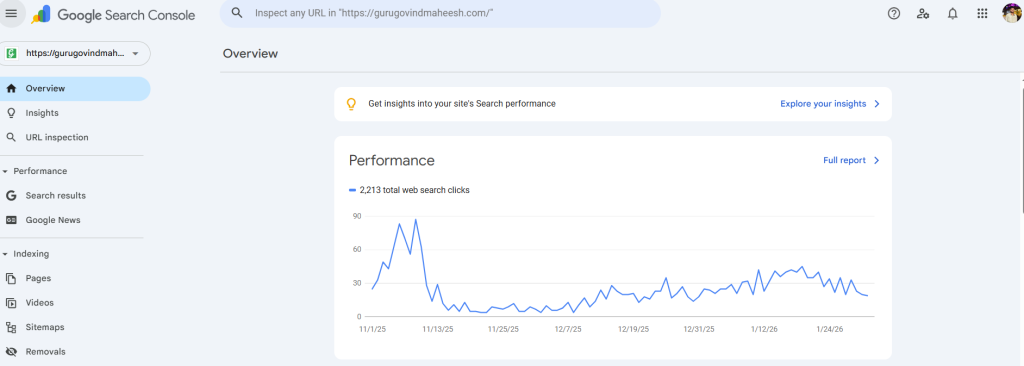
After you set up your Search Console account, you will get key data. The tool will show you what google search terms people use to find your site. It will also tell you how your pages show up on Google. If there are any problems that stop your site from showing the right way, you will see them. You can look at how many clicks and views your pages get from google search.
Search Console lets you see the way Google views your site. It can also send you email alerts if there are any potential issues. This can happen when it finds crawl errors or problems with security. You can fix these problems fast. To use Search Console, you just need a Google account.
Key Benefits of Using Search Console for SEO
Using Google Search Console can be a good way to help with your SEO. It gives you useful info about your site’s performance in google search results. If you look at your account often, you can see what is working well and see what parts of your site need more work. Google search is easier to handle when you use these tools to find out what is helping your search results and what needs to get better.
You may need to fix some problems like crawl errors or work on your content for some search queries where your rankings drop. The tool sends you email alerts to let you know if there are any problems. This helps you stay on top of things that might affect your search traffic.
Some of the key benefits include:
- Monitor Organic Traffic: See which search queries bring people to your website. You can also see what pages get the most visits.
- Identify Technical Issues: Look for errors with indexing or problems on phones. Fix these and other issues so your ranking does not go down.
- Optimize Content Strategy: Use data on how your site does to find ways to add new content. You can also use it to make your old pages better.
How Search Console Google Differs from Other SEO Tools
Today, there are many SEO tools out there. Google Search Console stands out because it gets its info right from Google. This free tool lets you see how your site is doing in google search. It looks at things like how Google checks and adds your site, and how your website shows up in search results. You should know that this is not the same as google analytics, which looks at what people do after they get to your site.
Search Console offers tools that help you see your site the way Google does. One tool is the url inspection tool. You can use it to check a page. There are also search appearance reports. These show you how your site looks in search results. The performance report, for example, gives you real numbers. You get info on clicks, impressions, and average position. No other tool gives you this information.
Here is a simple way to see that they are not the same:
| Feature | Google Search Console | Google Analytics |
|---|---|---|
| Primary Focus | Your site’s performance in Google search results and its technical health from Google’s perspective. | User behavior on your website (e.g., page views, session duration, conversion tracking). |
| Key Data | Search queries, clicks, impressions, CTR, indexing status, crawl errors, backlinks. | Audience demographics, traffic sources, user flow, real-time activity, goal completions. |
| Main Purpose | To optimize for search visibility and troubleshoot technical SEO issues. | To understand user engagement and improve the user experience on your site. |
Why Google Search Console Is Essential for Website Owners
Google Search Console is not just helpful for anyone with a website. It is a must-have tool. If you want to build a strong online presence and improve your search rankings, you need to know how Google sees your site. Google Search Console gives you this feedback in a clear way. This is why it is a very important part of any good SEO strategy and digital marketing plan.
If you do not use it, you are only guessing how to help your website get seen by more people. You will not know the right way for your site to show up. The next sections will tell you what you need to get started. You will learn how to log in and find out if you have to pay for the tool.
Search Console Login and Access Requirements
Getting into Google Search Console is simple. You just need a Google account. If you use Gmail or any other Google service, you already have a Google account. This lets you link your website to your Google Search Console profile. That way, only you and the people you let in can see your website’s important data. This process works with google search and your google account.
To log in, go to the Google Search Console homepage. Click the “Start now” button. Use your Google account details when you sign in. If you are already signed in with your Google account on your browser, you may go right to the dashboard. This helps you get started with google search and google search console.
After you log in, you can add your website as a “property”. This helps you start to see how good it works. The login is safe and simple. You will get quick access to all the things you want to do with the platform.
Is Google Search Console Free to Use?
Many people want to know about the cost. The good news is Google Search Console is a free service. There are no hidden fees and no subscriptions to pay. Google gives this essential tool to all website owners for free. Because it is free, more people can use it and make their website better. This is what makes Google Search Console a very good resource for anyone who wants to learn more about google search or work on their own site.
There is no fee to use Search Console. Anyone can use it. It does not matter if you have a small blog or if you run a big online store. You can use all of its features to help with your seo strategy. With Search Console, you get the data from Google about your site. You can use this data to make good choices. This can help you grow your organic traffic.
Don’t think it’s simple just because the name says “free.” Google Search Console has many strong features in it. There are many paid SEO tools that ask people to pay for these same things. This is why it is such a good choice, and it is something you need in your digital marketing plan.
Do You Need a Google Account for Search Console?
Yes, you need to have a Google account if you want to use Search Console. This is how you get in. Your Google account lets you sign in and makes a search console account for you. It links you with the sites you want to check on. This is good, because it helps keep your site safe and lets you work on it without any trouble.
When you join Search Console, the system connects your google account to your website. You use this account to decide who else can use or manage your site, like people on your team or an SEO agency. The whole platform works well with other Google tools. You always need a google account to get in and use Search Console.
After you log in, first make sure you have a Google account. If you do not have one, you need to create it. Then, you need to show that you are the real owner of the website you want to add. You can do this with different verification methods.
Getting Started: What You Need Before Using Search Console
Before you start using Search Console, you need to have a working website. Make sure your website also has its own domain name. After this, you will need to show that you own or manage the site. There are several verification methods you can use for this.
Having other tools such as your domain registrar and Google Analytics can help you set things up in an easy way. The next parts will tell you what you need. You will read about tools, words, and things that you should know. This will help you get started without any trouble.
Prerequisites for Setting Up Search Console
Setting up your Google Search Console account for the first time is easy. There are some steps you will need to follow. First, you have to show that the website is yours. Google wants to be sure you own the site before you get to see the data. This keeps the site’s info safe. This part is called site ownership verification. You can do this in a few different ways.
If you do not know where to begin, just remember that google search, google search console, and your search console account will be used during the process. This will help you set up your google search console account for the first time.
When you make a new website in Search Console, you will see two options to pick from. These are “Domain” property and “URL prefix” property. The Domain property will follow all the subdomains you use on your website. These can be www, blog, and any others the website may have. It also keeps an eye on both HTTP and HTTPS versions of the site. With this option, you must use DNS verification. This means Google gives you a special record that you have to add to your domain name settings.
The “URL prefix” choice is more exact. It will only work with the same URL you enter. This way, you get more ways to check your site. For example, you can upload an HTML file to your site. You can put an HTML tag in your site’s main page code. You can also use your google analytics account. You should pick the way that is easiest for you to use and set up.
Resources and Tools Required for Access
To get the most from Google Search Console, it is a good idea to use other tools too. You do not need these to start. But they can help you set up faster. They also give better info about your website. It helps to have access to your website’s backend or server files. You will need this for some verification methods when you use Google Search Console.
Another key tool is an XML sitemap. This file helps google discover and follow the path of your site. It lists all your important pages. If you send it to Search Console, Google can read and index your content faster and in a better way. Many website platforms, like WordPress, can create this XML sitemap for you without extra work.
Here are a few other helpful tools:
- Google Analytics: If you already use Google Analytics, it is easy to check your site in Search Console in just a few clicks. The two of them work well together. They help you see all the traffic on your site.
- Google Tag Manager: You can use this too. It makes it simple to add and handle many tracking codes on your site.
- Structured Data: This is not a tool. If you know how to use structured data, you will get more from the “Enhancements” reports in Search Console.
Common Terms: Search Console Checker, Search Console Google, and More
When you begin to use the platform, you might notice there are some words that are not easy to get. The words “Search Console Google” mean the same thing as the Google Search Console. That is the official name of this tool. A lot of people say both names when they speak about google search or talk about the platform.
You may hear people talk about a “Search Console checker.” This does not mean that there is another tool to use. It just means people use the features in the Search Console to check how their website is doing. For example, you can use the url inspection tool as a way to check a specific page. It helps you know if this page is indexed and if it works well on phones. Also, when you go to the indexing section, you can look at the reports and check for any crawl errors there.
These words tell you to check the different search console reports to find problems on your website. You can look at your search appearance, check your indexing status, or focus on just one URL. When you do this, you use the search console as your main tool to see how your site is doing.
How to Set Up Google Search Console for Your Website
Now it is time to set up your Google Search Console account. A lot of people think this step is hard, but it is easy. This is an important step because Google Search Console gives good information about your website. You need to do a few things. First, you will make a login. Next, add your site as a property in your google search console account. After this, let Google know you own the site.
You do not have to know everything to get this done. The steps below will help you set up your account. You will see how to choose from the verification methods. This guide will also help you give your team access.
Creating Your Search Console Login
Your journey with Google Search Console begins when you make a login. This uses your usual Google account. You do not need to sign up again or make a new password. If you already use Gmail, you can use that account for this as well. You do not need to create a new username or password just for Google Search Console. A Google account is all you need to get started with both google search and google search console.
To start, you need to go to the main Google Search Console page. Click on the “Start now” button. You will have to sign in with your Google account. This is an important step for safety. It links your Google account to the website data. This keeps other people from seeing your google search numbers.
After you log in, you will see the Search Console dashboard. At this place, you can add your first website property. You only need one login to get into all the websites you manage. This is the main hub for you. You can look at your whole group of websites in one spot. Also, you do not have to worry about security issues.
Adding and Verifying Website Ownership
After you log in, you have to add your website. This lets Google Search Console know the site belongs to you. Google Search Console needs to check who gets the data so it goes to the right people. When you take this step, you will see two options to add your website. One is “Domain” and the other is “URL prefix.” It is part of how google search and google search console work to keep your site safe.
The “Domain” property is a good choice because it lets you keep track of every version of your domain name. This means you see data for http, https, www, and non-www. To set this up, you need to use DNS verification. For this, you add a TXT record in the domain’s settings.
The “URL prefix” property looks only at the address you give. It also lets you use different verification methods.
Here are a few simple ways you can check a URL prefix property:
- HTML file upload: First, save a file from Search Console. Then, put it in the main root of your website.
- HTML tag: Copy the meta tag. Put it inside the
<head>part on your homepage. - Google Analytics: If you use the same google account for Google Analytics, it will work right away.
Pick how you want to finish this process. When you do that, you will be able to get to your data.
Setting User Permissions and Roles
Sometimes, you need to let other people see the Search Console data on your website. You do not need to share your Google account login for this. You can give access to team members, clients, or SEO experts. This way, everyone can work together. It also keeps your account safe.
To add a new user, first go to “Settings” in your Search Console dashboard. Then, click on “Users and permissions.” After that, click “Add user.” Type in the email address of the person you want to invite. You will then pick a role for this person. That role shows what this person can do in the account.
There are three main roles you can assign:
- Owner: The owner can do everything. The owner can add people or take them out. The owner can change settings. The owner can see all the data.
- Full user: A full user can see everything and use almost every feature. A full user does not have the power to add or take out users.
- Restricted user: A restricted user can see most things. A restricted user can only read. A restricted user cannot make any changes.
Giving people the right roles is important. It helps stop security issues. It also helps stop changes that should not happen.
Step-by-Step Guide: Using Google Search Console for SEO Success
Now that your account is set up and checked, you can use Google Search Console to help with your SEO strategy. It lets you see how your site’s performance is showing up in google search. This is the time when things start to get interesting. The platform has many reports and tools. These let you see what is doing well and what is not. You get to spot what is good and what needs work. This helps you find better ways to get more out of your site and fix any problems.
This easy guide will help you start with some simple steps. You will learn how to send in your sitemap. You will also find out how to watch your search queries. When you do these things, you build a good base for your success in the long run.
Step 1: Submit Your Sitemap in Search Console
One of the first steps to take when you make your new Google Search Console account is to send an XML sitemap. A sitemap is a file that lists all the main pages on your website. It works like a map for search engines. When you send a sitemap, you help Google search find your content fast. This also helps all the important pages show up in Google search.
To send your sitemap, first find the “Indexing” tab on the left side menu. Click on “Sitemaps.” You will see a box called “Add a new sitemap.” Type in the address where you have your sitemap file, for example yourdomain.com/sitemap.xml. Then, click the “Submit” button.
After you send it to Google, they will take a look. You need to come back to this page to see if there is any update.
- Make sure the report shows “Success” as the status.
- See how many URLs Google found in the sitemap.
- Check for any errors that might keep pages from showing in search results.
It is a good idea to check your sitemap’s indexing status often. This lets you keep up your search performance.
Step 2: Monitor Search Performance with Reports
The main thing you need to use in Google Search Console is the performance report. In this report, you get to see how your site comes up in google search. This helps you look at your data for search results. You should check this often. That way, you know how your search performance is doing and you can spot any new changes right away.
When you open the performance report, you will see total clicks, total impressions, average CTR, and average position at the top. These are the main things you need to watch. You can turn them on or off to change what you see in the chart. This will help you check how each one moves over time. The number of clicks tells you how many people go to your site from search. This is good to know if you want your site to do well.
Below the chart, you can see tabs for “Queries,” “Pages,” “Countries,” and “Devices.” The “Queries” tab is very important. It will show you the search terms people use to find your site. These search queries let you know what your users want. This can help you find new words people use to look things up. It can also help you improve your content so it fits what your audience wants.
Step 3: Inspect and Troubleshoot URLs
Have you ever thought about why a specific page in your site does not show up in google search results? The url inspection tool can help with this. With this tool, you can see how google looks at any page on your site. All you have to do is copy one url from your site. Then, you need to paste it into the search bar at the top of the search console dashboard.
The tool gives you a report that shows the current indexing status of the page. You can see if the URL is in Google or if there are potential issues that might stop it from being listed. This report tells you about crawlability and if the page is mobile-friendly. It also gives details on any structured data found on the page. This is a good first step if you want to find and fix page-level problems.
If you have a new page, or if you make changes to an old one, you can use the URL Inspection tool to “Request Indexing.” This lets Google look at your page quicker. It can help your content show up in the search results sooner by using this url inspection process.
Step 4: Use Search Console Checker to Identify Issues
You should not only check one URL when you use Search Console. You need to see Search Console as a tool to help you watch the health of your whole site. There are two main reports you should keep an eye on. These are the Manual Actions report and the Security Issues report. It is good to check them to find any potential issues that may hurt your search performance or your site. You can go to these reports in the “Security & Manual Actions” tab.
The Manual Actions report tells you if someone at Google gave your site a penalty for not following their rules. You do not want to see anything in this report. If there is something listed, the report says what is wrong with your site. You can fix the issue and then ask Google to check your site again by sending a reconsideration request.
This helps you keep your site in good standing and shows you the manual actions taken by Google.
The security issues report will show you if your site has been hacked, has malware, or faces other security issues. Google thinks user safety is very important. So, you should fix these problems as soon as you can. If you look at the security issues report often, you will find problems early. This way, you can stop big harm to your name and your rankings.
Step 5: Optimize for Core Web Vitals and Page Experience
User experience matters a lot in SEO today. Google Search Console lets you check and improve this. You will find the Page Experience report under the “Experience” tab. This report tells you how people feel when they visit your website. It uses data from several checks. One of the main ones is Core Web Vitals. This can help you make your page better for users and also for Google Search.
Core Web Vitals are numbers that tell you how people feel when they use your site. They look at how fast your page loads, how simple it is to use, and if things on the page move around when you scroll. The report shows you which links work well, which links could be better, and which ones do not work at all. When you work on the pages that are not good, you make the site better for everyone. A better site gives people a good user experience. This can also help your website show up higher in google search results. A good user experience is important for all websites in google search.
When you click on the report, you can see the problems that are hurting your scores. You may see things like slow loading times or changes in the way the page looks. Take this data and share it with your developer. Then, both of you can work together to fix these things.
A good page experience helps SEO. It also makes people feel happy on your site and keeps them interested in what you have to say.
Advanced Features and Integrations in Google Search Console
When you feel good with the basics, you can begin to use more advanced tools in Google Search Console. These extra features help you make your SEO strategy better. You can look closer at your google search data and create reports that match what you need. With these tools, you can change the way your site looks in google search any time you want.
There is always something new that you can see in Search Console. You also can link Search Console with tools like Looker Studio. This platform gives you reports about indexing and how to fix things. You can read more details about all this in the next sections. These will tell you ways to use these strong features. They will help you get better SEO results.
Connecting Search Console to Looker Studio
Yes, you can connect your Search Console data to Looker Studio, which was once known as Google Data Studio. The reports in Search Console are helpful, but Looker Studio gives you custom dashboards. These dashboards let you interact with your data. You can also share them with your team or clients.
This connection lets you use your Search Console numbers in your reports. You can see clicks, how many times people see your site, CTR, and where your site shows up for each search term and page. You can also bring this data together with numbers from other places, like google analytics or Google Ads. This way, you can look at all your marketing results in one place.
With Looker Studio, you can make charts, tables, and graphs that help show how things change over time. The tool lets you compare what you get from different devices or from countries. You can choose the numbers that feel most important to you. This helps you see and understand data that can be hard at first, and also helps you show your work in a simple way. You get more choices with this than you do with the normal reports in Search Console.
Exploring Indexing, Enhancements, and Security Features
When you check out the indexing section in Search Console, you will see some key things for technical SEO. The indexing section is more than just for submitting sitemaps. You can find a report called “Pages” there. This report helps you know why some pages are not being indexed. It gives you clear error messages such as “Crawled – currently not indexed.”
The Enhancements section helps you look at how you use structured data on your site. If you have structured data for things like FAQs, Breadcrumbs, or Products, you can see which ones are working well and which ones have mistakes. You need to fix these mistakes if you want to show rich results, or rich snippets, in search. Rich results can help your site get a better click-through rate.
The Security & Manual Actions section acts like an early warning system for your site. It is good to check this part often for any security issues. You should watch for things like malware or hacking. This helps keep your users safe. It also helps your search rankings. These features give you helpful feedback. This can help you keep your website safe and working well.
Leveraging Search Console Data for SEO Improvements
The real strength of Google Search Console is in how you use the data you get from it to do better with your SEO strategy. Your seo strategy should be based on the things you find inside this tool. When you open the performance report in Google Search Console, you will see which keywords in google search you almost rank near the top for. A lot of these may be on page two. You can then work on those pages to help them move up to page one.
The “Links” report shows you the links on your site. It tells you which pages have the most internal links. This can help you make sure your best content gets good support. You will also see a list of external links. This tells you which sites are linking to you.
If you use Search Console data often, you can make your website better little by little. You can find and fix problems on your site. You can also change your text by looking at what people search for. It helps you build better links inside your site. Each change you make will be based on real numbers. This will help you get better search rankings and grow your online presence.
Conclusion
To finish, learning how to use Google Search Console in a good way is important for your SEO work. When you use the tools, you learn a lot about how your site does in google search. You can find out what is wrong with your website and fix it. You can also make your content better, so it can go higher in search results. What you read in this guide can help you make the best choices. These choices will get more people to your site and also make the user experience better. Remember, good SEO is not just about new trends. It is about understanding how the tools you have, like Google Search Console, work and using them well. If you want to know more or help your site grow, reach out now for a free talk with our experts.
Frequently Asked Questions
How do I log in to Google Search Console?
To log in, go to the Google Search Console homepage and click “Start now.” You need to use your Google account to sign in. This lets your google account connect to your search console account. You can see your site data in a safe way. The steps are easy for all website owners who use google search.
Can I use Search Console for multiple websites?
Yes, you can use one Google Search Console account to take care of many websites. To do that, just add each website as a new property in the search console account. After that, you need to verify that you own each site. When this is done, you will be able to switch from one site to another and check their google search results or see how they do in google search. You get to do all of this in one google search console account, and it is all shown in one dashboard.
What are the main features available in Search Console?
The main features are simple to use. The performance report shows you clicks and views on your site. The url inspection tool helps you check a page’s status. There is an indexing report that lets you watch your site’s indexing status. You can see reports on enhancements for rich results. You also get details about search appearance. All these features help you see your site clearly.
How does Search Console help improve website SEO?
Search Console gives SEO professionals useful tools. It lets you look at the search queries that bring people to your site. This helps you track your search performance. You can find and fix technical errors on your site. Search Console lets you check the structured data you have. You can also ask for indexing when you put up new pages. Using these features helps you make good choices to go up in the search results.
How to get Help with Google Search Console? : r/bigseo
For help with google search console, you can start with the official google search central site. This place has guides and tips that show you how to fix problems. There are people on forums like Reddit’s r/bigseo who can help too. They have their own stories and give advice on what to do when you have problems with google search.
Is there something going on with Google Search Console?
If you feel something might be wrong, the first step is to open your Performance report in Google Search Console. Check if your search traffic went down a lot. Next, look at your Security Issues report for any alerts from Google. Sometimes, search traffic can drop if google search makes updates. People often talk about these changes in SEO groups or in the community.
What is a Google search console? How does it work?
Google Search Console is a free tool from Google. You can use it to see how your website is doing in search engines. With Google Search Console, you get data about how Google finds and puts your site in the index. You can also check search performance, look for problems in the indexing section, and get tips to help make your site’s presence better. This tool can help you get more good results from google search.
What are the pros and cons of the Google Search Console?
The best thing about Google Search Console is that it is a free tool. You get data right from Google, so it helps with any SEO strategy. But if you are new to Google Search Console, the data may be hard to read at first. Also, it can miss some common issues that other paid tools may find. So, Google Search Console is good for your google search work, but it is not the only tool you should use.
What is Google search console?
Google Search Console is a free service from Google Search Central. With it, you can check your web page in google search results. You get tools and reports that help you see how well your web page is doing in google search. This service can also help you see and fix any problems so your web page will show up in google search results.