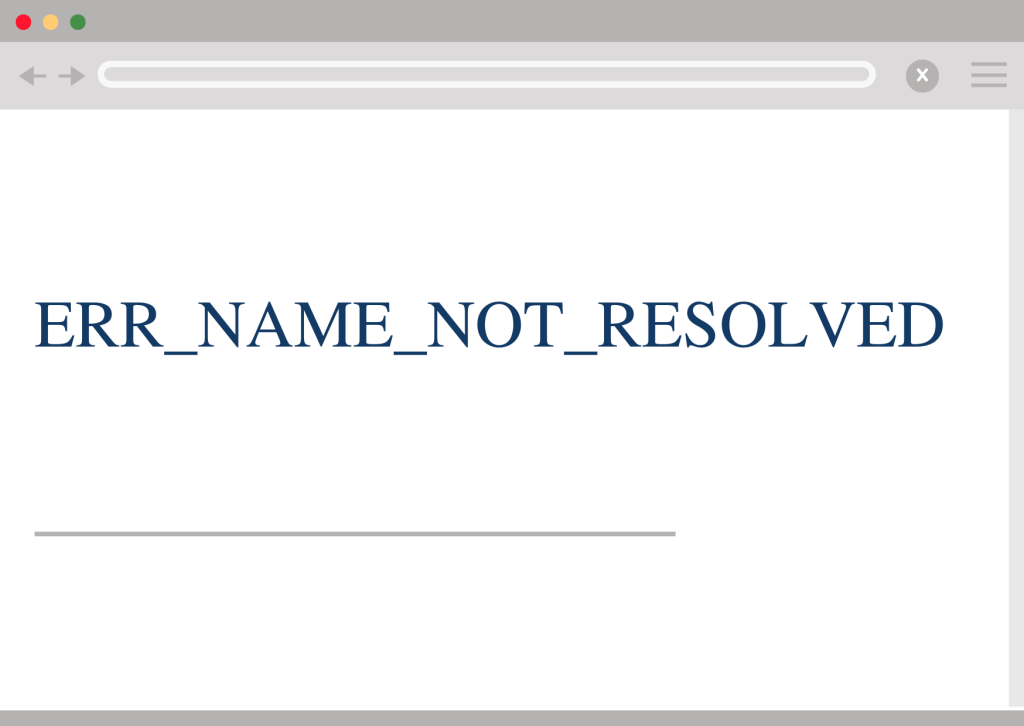
Key Highlights
Here’s a quick look at how you can fix the ERR_NAME_NOT_RESOLVED error:
- This error message means your browser can’t find the website’s IP address.
- A poor internet connection or an issue with your router is a common reason for this.
- Clearing your browser cache and cookies can fix the issue for you.
- Flushing the DNS cache on your computer will get rid of old information.
- Changing your DNS server addresses to public DNS servers like Google’s might help.
- The problem may also be from your firewall or from the website itself.
Introduction
Have you ever gone to a website but seen the “ERR_NAME_NOT_RESOLVED” error? Many people run into this problem and feel stuck. This error shows up when your browser tries to get to that website but fails to turn the domain name into an ip address. The domain name system, or DNS, is in charge of this step. Think of it like the phonebook for the internet. It helps look up a domain name and find out the matching ip address. If the dns server does not locate the right entry, your browser cannot connect. That is when you see this error message.
Understanding ERR_NAME_NOT_RESOLVED Error
The ERR_NAME_NOT_RESOLVED error means the DNS lookup did not work. When you type a domain name in your browser, like Google Chrome, the browser tries to find the IP address for that site. If it cannot get the address, this error shows up. This can be because of problems with your internet connection, or it can happen if there is something wrong in your DNS settings.
Knowing the real problem is the first thing you need if you want to fix it. It can be in your own device, the network router you use, or the site you want to go to. Our text will show you what this problem looks like. It will show you how it links to your dns settings. It will also tell you about some signs you may see.
What does the ERR_NAME_NOT_RESOLVED error mean in Chrome and other browsers?
When you see the ERR_NAME_NOT_RESOLVED error message, it means that your browser could not find the domain name you typed. The browser uses the domain name system to look for the server that has the website you want to go to. If this does not work, you will not be able to connect to the site.
In the Chrome browser, you might see an error that says, “This site can’t be reached.” This means the server’s IP address could not be found. The same type of message shows up in other browsers, too. For example, Firefox may say, “Hmm. We’re having trouble finding that site.” Microsoft Edge can show, “Hmmm… can’t reach this page.”
No matter which browser you use, the main issue is with the dns resolution. Your device tried to get the address of a website, but the dns system did not give the right answer. Because of this, you can’t go to the page.
Is the ERR_NAME_NOT_RESOLVED error related to DNS settings or connectivity?
Yes, the ERR_NAME_NOT_RESOLVED error is linked to your DNS settings and your internet connection. The two often work together. A DNS lookup means finding an IP address for a domain name. You need a steady internet connection to talk to a DNS server during this process.
Connectivity issues, like when the Wi-Fi signal is weak or a cable gets disconnected, can stop your device from reaching the dns server. If your request does not get to the dns server, the dns lookup will fail. Then, you will see an error. This problem happens a lot, but it is often easy to fix.
But sometimes, the trouble can be with your own DNS settings. You may be using a dns server from your internet service provider that does not work well. A dns server can be slow or set up in the wrong way. Also, your computer may store some bad dns data. This bad data can stop you from getting online, even if your internet connection is working fine.
Common signs and variations of the net err name not resolved issue
The official term for this problem is ERR_NAME_NOT_RESOLVED. But browsers often show it with simpler, easier messages. Knowing these different messages can help you see if you are facing common dns errors. All of these signs mean the domain name could not be found or matched.
You may see different words depending on the browser you use. They all say the same thing. Many times, the words will look like the ones below:
- This site can’t be reached
- This webpage is not available
- The server’s DNS address could not be found
- Server not found
When you see one of these messages, the first thing to check is your internet connection. Make sure you have a good signal. Try restarting your router if you still have issues. You can also clear your browser cache. This helps your browser get new data from the website. These simple steps are often enough to solve the problem.
Main Causes of ERR_NAME_NOT_RESOLVED
The ERR_NAME_NOT_RESOLVED error can happen for a few reasons. It may be because of a problem in your own computer or with the website. A weak internet connection is one common reason that keeps your device from reaching the dns server. Sometimes, your dns cache may have old data. This makes your browser try to open a website using the wrong address.
Problems can happen if your DNS server addresses are set up in the wrong way. A firewall or antivirus software can also get in the way and stop the DNS server from working right. There may even be some malware that leads to issues with the DNS server. In the next sections, we will go into each of these reasons more deeply. This will help you find out exactly what is wrong and solve it.
DNS misconfigurations and network issues
DNS problems and network trouble are the main causes behind many ERR_NAME_NOT_RESOLVED errors. A key dns issue is when the dns server does not respond. The dns server set on your device, which is usually picked by your internet provider, can be down for a short time, have too much use, or face other problems. If this happens, it cannot handle your request to connect to a domain name.
Another big reason for this is a corrupted DNS cache on your computer. Your system keeps a DNS cache to help websites load faster the next time you visit. But sometimes this saved info gets old or messed up. A website can change its IP address, but your cache might still have the old one. This can stop you from getting to the right place and cause a problem when looking up the address.
Sometimes, your device may not talk to the internet in the right way because of bad network settings. If you set up your dns settings by hand and pick the wrong address, this can be a big problem. Also, if your device does not get network settings in the right way, it can mess up the whole dns process. This can cause the error.
Browser cache, cookies, and local data problems
Your web browser keeps a lot of information to help make things quicker and smoother for you. It holds a browser cache, which saves bits of websites you visit. It also saves cookies. These have site data and your settings. This is handy, but this stored data can sometimes cause problems.
If there is outdated data like an old IP address in the browser cache, your browser may not show you the newest version of the website. There can be a conflict when the cache does not match what is on the server right now. This can cause the ERR_NAME_NOT_RESOLVED error to show up. The browser tries to go to a spot that is not there anymore.
This is why one of the best troubleshooting steps is to clear browsing data. When you clear your cache, cookies, and other site data, the browser gets rid of old files. The browser then downloads a fresh copy of everything. This can help fix issues with a website and get its correct DNS information.
Malware, security software, and firewalls
Sometimes, the cause of the ERR_NAME_NOT_RESOLVED error is not a network issue. There might be other things, like software bugs on your computer, that stop dns resolution from working right. Malware can change your system settings. It can mess with your network or DNS settings. That could change where traffic goes or even keep you from opening some sites. This kind of problem makes dns resolution hard to do.
Your security tools like antivirus software and firewall settings can make problems too. These programs are there to keep you safe, but sometimes they do too much. A firewall can look at a real website and say it is bad. Then, it can stop you from getting on it. If your firewall settings are too tough, your browser may not do the needed DNS queries.
If you think your security tools are causing a problem, you can turn off your antivirus software for a short time. You may also try to reset your firewall settings back to their starting point. Doing this can help you find out if the security feature is stopping you and causing the error.
Issues with public WiFi or unstable internet connections
Your internet connection links your device to the dns server. If there is any trouble with the internet connection, you may get the ERR_NAME_NOT_RESOLVED error. An unstable internet connection, like when the speed is slow or it keeps dropping, can stop the dns lookup from finishing.
This issue often happens when you are on public WiFi like in a cafe, airport, or hotel. These networks can be busy and their settings may make it hard for your device to do dns resolution. Sometimes, the public WiFi will block some ports or have security that stops your device from reaching the dns server the right way.
If you keep seeing this error on one network, the first thing you should check is if your internet connection is stable or not. Try to open other websites to see if they work. You can also try to connect to another network, such as your mobile data, to check if the error is still there. If it works when you switch networks, then it’s likely the original internet connection was causing the problem.
Essential Steps to Try First
Before you go for harder fixes, try a few basic troubleshooting steps first. These easy actions can help you fix the ERR_NAME_NOT_RESOLVED error fast. The issue is often because of a small problem with your internet connection, your device, or browser settings.
It is smart to start with the basics. This can help you save some time. First, check your internet. Then, restart your equipment. After that, see if the problem is with the website itself. These first steps will help you find out what is wrong most of the time.
Testing your internet connection and router resets
The first thing you should do is check your internet connection. A bad or lost network often leads to this error. Try going to some other big websites, like Google or YouTube, to see if they open. If they do not load, the issue is most likely with your internet.
If you think your connection is not working, you can try to reset your router. This is one of the best ways to fix many small network problems. To reset the router, unplug the power cable from both your router and modem.
Wait for at least 30 seconds before you plug everything back in. This gives the hardware time to shut down and start up fresh. After that, let the router work for a few minutes to begin again and get a connection with your internet company. When all the lights look normal, try to open the website again.
Restarting your computer and browser applications
If restarting your router did not fix the issue, try restarting your devices next. A small glitch in the operating system or in your browser can stop things like dns resolution from working. A quick restart can often clear up the problem.
Start by fully closing your web browser. Do not just make it smaller or hide it. Make sure you have shut down the whole thing. Then open it again. Go to the site and see if it works this time. This may fix problems that happen in one web browser session.
If that does not fix the problem, try restarting your whole computer. This helps clear your computer’s temporary memory. It also makes everything, including networking parts, start over. A lot of people use this step because it can help with many problems, like internet connection issues.
Checking for outages or website-specific errors
Sometimes, the trouble might not be on your side. The website you want to visit could be down or have its own settings wrong. If you can get on other sites just fine, but see this error on only one, then that site is likely having a problem.
There are a few easy ways to see if the problem is with the website. Before you get in touch with the site owner, you can try these steps.
- Try getting to the website from another device that is on the same network.
- Use another network, like your phone’s mobile internet, and see if the site comes up.
- Check social media or outage-tracking sites to find out if people also say the site is down.
If the site does not work for everyone, the only thing you can do is wait. The site owner will need to fix it. The issue might be with their hosting provider or with wrong dns records.
9 Ways to Fix ERR_NAME_NOT_RESOLVED
If the first things you tried did not fix the problem, you can try some other troubleshooting steps. The ERR_NAME_NOT_RESOLVED error can be fixed using different ways. Most of these help by getting rid of outdated data or changing your network settings. These steps can help with problems that come from your browser cache, dns cache, or dns server settings.
There are nine ways that can help you fix this error. You may need to flush the cache on your computer or change your DNS settings. These steps work for Windows, Mac, and other operating systems. If you follow them, you should be able to get your connection back and start browsing again.
Clearing browser cache, cookies, and saved data
The ERR_NAME_NOT_RESOLVED error often happens because the data saved in your browser is old or broken. The browser’s cache and cookies keep details so pages can load faster. But if a website changes its server info, the saved data may not be right anymore. If you clear this data, the browser will get new, up-to-date info.
The way to clear browsing data is mostly the same in all browsers. You can usually find it in the “Settings” menu. Look for “Privacy and Security” to get the option.
- In Google Chrome: Open “Settings.” Go to “Privacy and security.” Pick “Clear browsing data.” Set the time range to “All time.” Check both “Cookies and other site data” and “Cached images and files.” Click “Clear data.”
- In Firefox: Go to “Settings.” Find “Privacy & Security.” Scroll down to “Cookies and Site Data.” Click “Clear Data.”
After you clear site data and clear the cache, close your browser and open it again. Then, try to visit the website now. This easy step can fix the problem most of the time. It does this by getting rid of old or bad info that gets in the way and causes trouble for the website.
Flushing the DNS cache on Windows and Mac
Your operating system saves a dns cache just like your browser. It uses this to help open websites faster. But sometimes, the dns resolver cache might have wrong or old dns information. This can make it hard to reach a website. When you clear the dns cache, all these entries are removed. Your computer then gets new dns information.
To do this, you need to open the Command Prompt if you use Windows, or the Terminal if you use macOS or Linux. Make sure you use the app that works with your operating system. Then, type in the command for your system. If you are on Windows, you will see a message that says the cache is cleared.
Here are the commands you need for the different systems you use.
| Operating System | Command to Flush DNS Cache |
|---|---|
| Windows | ipconfig /flushdns |
| macOS | dscacheutil -flushcache |
| Linux (systemd) | systemd-resolve --flush-caches |
| Linux (nscd) | sudo /etc/init.d/nscd restart |
After you run the command, try to open the website again. This step, along with clearing your browser’s DNS cache using the clear host cache button inside Chrome’s network internals, can help fix DNS issues with the site. Clearing your own DNS cache and using the clear host cache option is a good way to solve problems caused by dns cache problems.
Modifying DNS settings to use reliable servers
If clearing your cache did not fix the issue, the problem could be with the dns server you use. The dns server given by your internet provider can be slow or not work. It might even be down for updates. You can try changing to public dns servers that are free. This can often solve the problem and may make your browsing faster.
Some of the most well-known and trusted public dns providers are Google and Cloudflare. These services are fast and safe for many people. You can change your dns server addresses by going into the network settings on your computer.
Here are the addresses you need for Google DNS and Cloudflare DNS:
- Google DNS: 8.8.8.8 and 8.8.4.4
- Cloudflare DNS: 1.1.1.1 and 1.0.0.1
On Windows, you can do this by opening “Network and Sharing Center.” Then, pick “Change adapter settings.” Next, open the properties for your network. After that, enter the new numbers under “Internet Protocol Version 4 (TCP/IPv4).”
Checking and editing your local Hosts file
Your computer has a file called the hosts file. This file helps map a website name to an IP address by hand. It works above the regular DNS resolution process. It can be handy for development work. But if there are incorrect entries in the hosts file, it can block sites or send you to the wrong address. This can cause the ERR_NAME_NOT_RESOLVED error. Make sure the entries in the hosts file are correct if you have this problem with DNS resolution.
You should look at your hosts file to see if there are any entries that look wrong or that you do not know. This is very helpful if the error comes up for some websites and not others. You have to openen the hosts file with administrator rights. On Windows, you can find the hosts file at C:\Windows\System32\drivers\etc\hosts. This helps you find and fix any incorrect entries.
Open the file in Notepad. Be sure to do this as an administrator. Look for lines that do not start with a “#” symbol. These lines are where you will see the mappings. If you find a line for the website you want that has a wrong ip address, you can take it out. You can also put a “#” at the front of the line to make sure it does not work. Save the file. Now, try to go to the website again.
Temporarily disabling firewalls or antivirus software
Your firewall and antivirus software help keep your computer safe. Sometimes, though, they can be too strict. The security tools may see a safe website as a threat by mistake. If this happens, they block your connection. This can cause a DNS resolution problem. If other fixes did not work, you should check if your antivirus software is stopping you from getting to the site.
You can check this by turning off your firewall or antivirus software for a short time. It is important to be careful when you do this because your computer may not be safe. Only switch it off for a few minutes. Use this time to see if you can get to the website. If you are using Windows, you can find and manage your firewall in the “Windows Security” settings.
If you turn off the software and the error is gone, you now know what caused it. Switch your security tools back on. Then check their settings. You might find a choice to let the website through by making it an exception or whitelisting it. Another way that works for many people is to put your firewall settings back to default. This can fix these issues, as firewall settings may block websites by mistake.
Resetting browser settings to default
If the error keeps happening and it looks like it is only on one browser, it might be because of the browser settings. Things like extensions, custom settings, or new test features can get in the way of how your browser sends and gets network requests. You could try resetting your browser settings to the default. This may help to fix these problems.
This step will bring all your settings back to how they were at first. It will turn off every extension and remove temporary data like cookies. This is more serious than just clearing the cache. But it works well to fix many problems that keep coming back in the browser.
- In Google Chrome: Go to
chrome://settings/reset. Then, click “Restore settings to their original defaults.” - In Microsoft Edge: Visit
edge://settings/resetand choose “Restore settings to their default values.” - In Firefox: Go to
about:support. After that, click “Refresh Firefox.”
This step will turn off features like “preload pages.” Sometimes, these options can cause DNS errors. After you reset it, try to get on the website again.
Scanning for malware and removing threats
Malware means bad software that can get into your system and mess things up. One big cause of the ERR_NAME_NOT_RESOLVED error is this type of software, but a lot of people do not notice it. This malware may change many settings in your computer, like your hosts file and network settings, and you do not even know. It can send your DNS requests to some harmful server, or it can stop them from working at all.
If you think malware could be causing the problem, it is a good idea to run a full scan on your computer. You can use antivirus software you already have or use the tools that your operating system offers. If you are using Windows, you can use Windows Security to check for viruses and threats on your system.
Run a full system scan so you can find and get rid of any threats. After the scan is done and the malware is gone, you should reset your network settings. Then, flush your dns cache again to fix any changes the malware made. Keeping your system clean is key to stopping dns issues from coming back.
Troubleshooting public WiFi and mobile networks
Public WiFi and mobile networks can cause problems when you try to make DNS resolution work. A lot of the time, the connection may not be very steady and can create issues with dns queries because of the way these networks are set up. If you find an error while you use one of these networks, there are some troubleshooting steps you can try.
For an Android device or any mobile device, the first thing to do is try switching between WiFi and mobile data. If the site opens on one but not the other, that shows the problem is with that network. If you have issues on public WiFi, just reconnecting to the network may fix it.
Here are a few additional tips for mobile devices:
- On an Android device, you can try turning off any antivirus or security apps for a short time.
- Restart the phone in safe mode. This helps to see if a new app is causing problems.
- In your Chrome app settings, turn off the “Preload pages” feature.
These steps can make it easy to get through many kinds of network settings. You can use them to solve the error as you go.
Browser-Specific Solutions and Hosting Tips
While a lot of ways to fix ERR_NAME_NOT_RESOLVED will work anywhere, some fixes are made for the browser you use or your own situation. For example, the Chrome browser has its own dns cache. You may need to clear this cache on its own. If you own a site, this error can mean there is a problem with your hosting provider or with your dns settings.
This part gives ways to fix problems for top browsers like Chrome, Firefox, and Edge. We also share simple tips for website owners who have a dns lookup problem with their site. These tips help them find and solve problems with their server.
Addressing net err name not resolved in Chrome, Firefox, and Edge
Each web browser works with DNS and caching in its own way. So, there may be times when you need to use a fix made for your web browser. If you have tried all the usual fixes and they did not work, it can be good to check the settings in your web browser. This can often help you solve the problem.
If you use the Chrome browser, you need to do a few special things. Chrome has its own dns cache. This is different from the one in your operating system. When you clear your system’s cache, the one in Chrome does not get cleared. You have to clear it by hand.
- Clear Chrome’s Host Cache: Type
chrome://net-internals/#dnsin the address bar. Then click the “Clear host cache” button to delete the dns cache. - Disable Preloading: Open Chrome settings and look for “Performance.” Turn off the “Preload pages” feature here. This can help avoid possible problems with loading.
- Firefox DNS Cache: To clear dns cache in Firefox, go to
about:networking#dns. On the dns tab, click “Clear DNS Cache.”
These steps help fix problems that come from how your browser works or its settings.
How to fix ERR_NAME_NOT_RESOLVED when hosting a website
If you are a website owner and your users say they get the ERR_NAME_NOT_RESOLVED error, this could be because there is an issue with your domain settings. The first thing to look at is your DNS records. Go to your hosting provider dashboard or your domain registrar account. Check and make sure your DNS records point to the right IP address for your web host.
Another problem that can happen, especially when you move your website to a new web host, is with DNSSEC. DNSSEC stands for Domain Name System Security Extensions. It gives extra security to your domain name system, but if it’s not set up the right way, your domain name may not work or spread out across the internet like it should. If this happens, you can try turning off DNSSEC in your domain registrar account for a bit to fix the problem.
If you look at your dns records and dnssec settings but still have trouble, you should reach out to your hosting provider. They will help you check for problems on the server and make sure your domain works like it should for everyone who wants to visit it.
Does the ERR_NAME_NOT_RESOLVED error affect certain websites only?
Yes, the ERR_NAME_NOT_RESOLVED error can happen with only some websites. When you see this, it is a strong sign of where the problem may be. If you visit most sites on the internet with no problem, but get this error on a certain domain name, it shows that your computer or local network is not causing the issue.
In this case, the problem is usually from the website. The site owner might have wrong DNS records. There is a chance that their server is not working. Sometimes, there is a problem with how they set up their hosting. A DNS error happens because the global DNS system cannot get a correct IP address for that domain.
You can’t fix this problem by yourself. To check it, you can ask a friend to visit the website. You can also use a tool online to see if the site is down for other people too. If people are getting the same issue and if the website is down for everyone, you will need to wait until the site owner fixes it.
Preventing Future ERR_NAME_NOT_RESOLVED Errors
After you fix the ERR_NAME_NOT_RESOLVED error, you will want to stop it from happening again. You can do this by keeping your DNS settings stable. It also helps to practice good habits online. If you stay ahead and take steps early, you can cut down on problems. This will help you have a smoother time when you use the internet next.
Simple habits matter when using your device. For example, you need to pick reliable dns server addresses and keep system settings clean. These things help stop many problems that come from dns errors. We will talk about some good ways to set up your dns server. We will also share safe browsing habits that help you stay away from this and other usual dns errors.
Best practices for stable DNS configurations
Keeping your DNS settings stable helps stop many resolution errors. This error is closely linked to your DNS setup. So, make sure it is set for reliability. This will save you much trouble later. Pick your DNS providers with care.
Instead of using the standard server from your internet company, which might be slow or not work well, you can switch to a trusted public DNS service. This easy change can make your connection more stable and help it work better.
Here are a few best practices to follow:
- Use reliable DNS providers: Switch to DNS services like Google DNS (8.8.8.8) or Cloudflare DNS (1.1.1.1). You will get better speed and stay online with these providers.
- Set DNS automatically (usually): Most people should let their network get the dns server address on its own. This is the best choice unless you want to use a public dns like Google DNS.
- Periodically check for configuration issues: If you notice problems with your connection, look at your dns settings. Make sure the dns server has not been changed by someone else without you knowing.
Safe browsing habits and regular system maintenance
Besides your DNS settings, what you do online each day and how you care for your computer also matter a lot. Malicious software can cause many DNS problems. It might let someone get into your system settings without your okay and change them. The best way to stay safe is to practice good browsing habits. This can help stop these issues from happening.
Be careful about the websites you go to and what files you download. Do not click on strange links or get programs from places you do not trust. Always make sure your operating system, browser, and antivirus software are up to date. Updates help keep you safe because they can fix problems and protect you from new dangers.
Make sure to run malware scans on a regular basis. This helps keep your system safe and clean. When you follow these safe steps and also clear your cache from time to time, you make a better and more secure space for your computer. This lowers the chance that you will run into problems with DNS errors.
Conclusion
To sum up, getting the ERR_NAME_NOT_RESOLVED error can be annoying. Still, when you know why it happens and how to fix it, you can deal with it better. Try things like clearing your browser cache or changing DNS settings to get your browsing back to normal. Using good methods for keeping your DNS settings right will help stop this error from coming up again. Keep checking your internet connection and act early if you see problems. If you want help or advice made for you, feel free to reach out. You can also get a free talk with our experts today!
Frequently Asked Questions
Can public WiFi trigger the ERR_NAME_NOT_RESOLVED error?
Yes, using public WiFi can often cause this error message to appear. These networks can have an unstable internet connection or security steps that stop you from reaching a dns server. If you get the error message on public WiFi, try leaving the network and joining again. You can also use your mobile data to see if that helps fix the problem.
Will clearing my cache always resolve net err name issues?
Clearing your browser cache is a good place to start when you get DNS errors. The browser cache may have outdated data that causes the error message. But, this step will not fix every problem. The error might happen because of something in your network, issues with a firewall, or trouble with the server. If clearing your browsing data doesn’t help, you will need to try different ways to solve it.
Why does net err name not resolved keep appearing on the same sites?
If you keep seeing the error message for certain sites, it might be a bad entry in your DNS cache for that site. But most times, it is the website that has the problem. The site owner may have set up the DNS records wrong, or the server may be having trouble.
ERR_NAME_NOT_RESOLVED for a split second?
If you see this error message for a second, it often means there are small connectivity issues or a quick delay in dns resolution. This can happen if there is a lot of traffic on the network, a short problem with your browser settings, or with the dns server addresses. Most of the time, if you refresh the page, the error message will go away on its own.